
Brave alternative for Windows
Krypton vs Brave
Brave and Krypton both include blocking tools. Compare the browsing tools around them, too.
If you are considering a Brave alternative for Windows, Krypton combines uBlock Origin with nested tab folders, workspaces, Glance and Boost.
Free for 64-bit Windows 10 and 11
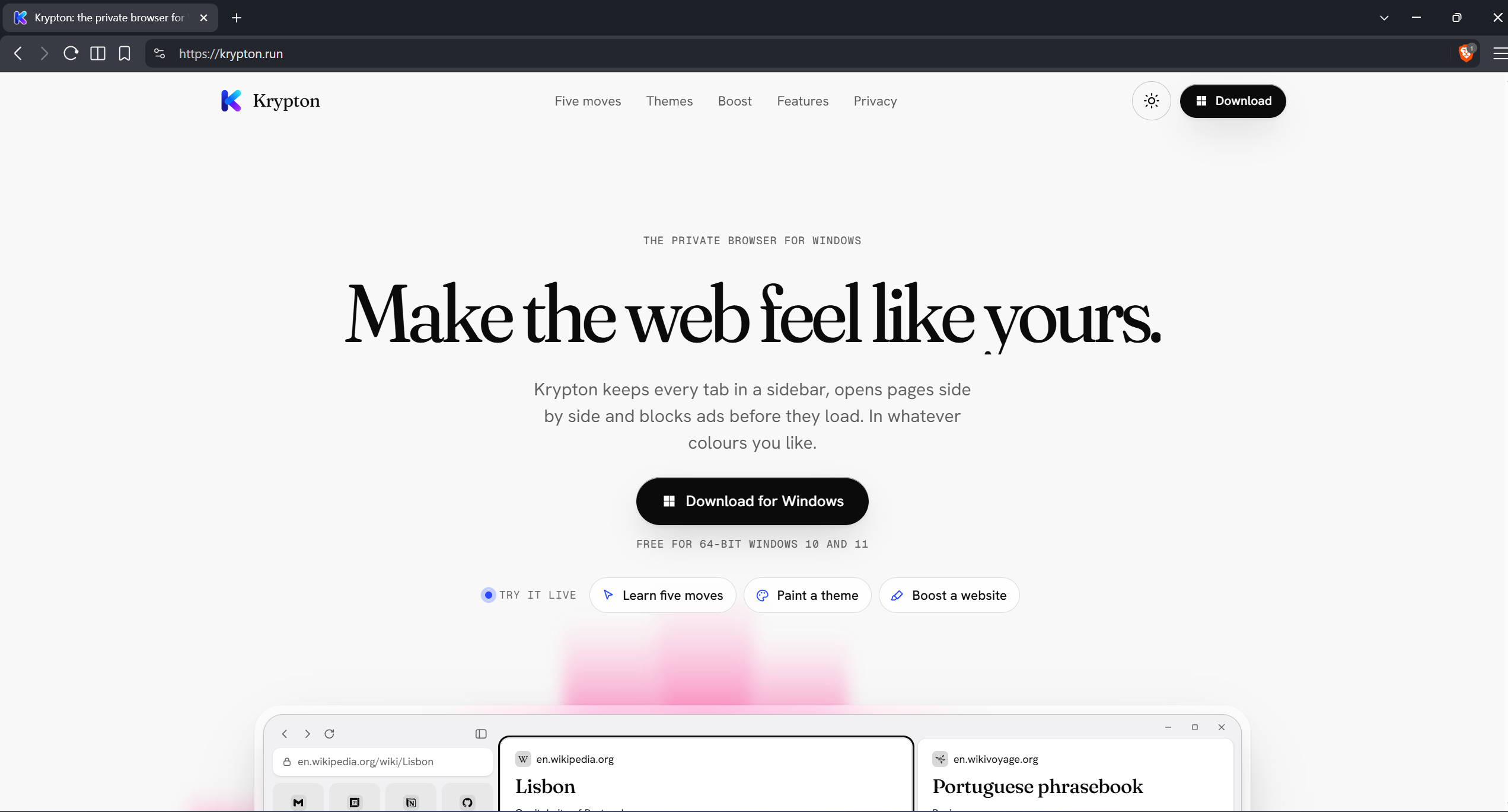
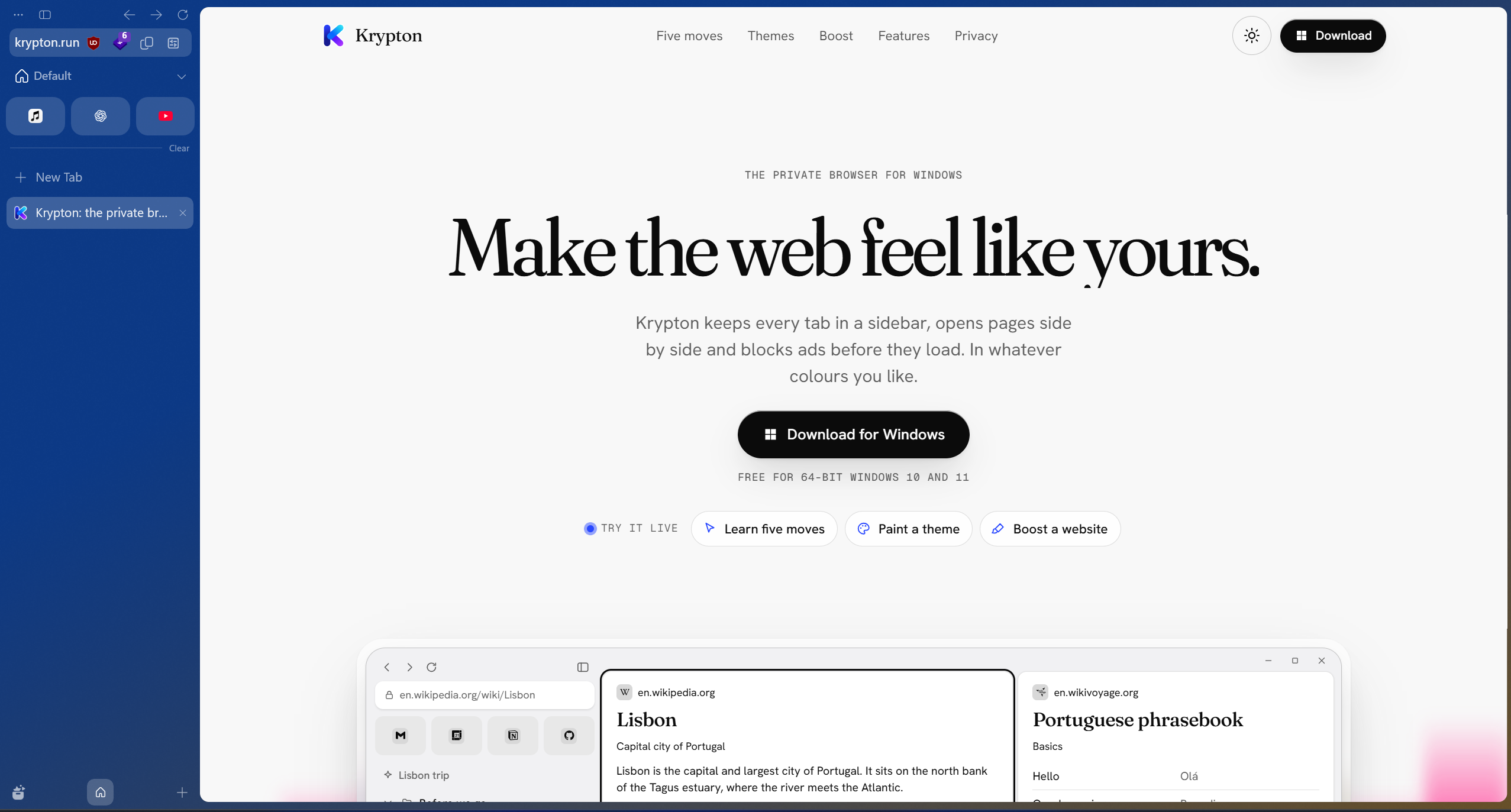
Drag the divider, or focus it and use the arrow keys.Krypton and Brave, side by side.
Krypton and Brave at a glance
Brave uses Shields for ad and tracker blocking. Krypton uses uBlock Origin, alongside its own tools for organising tabs and customising websites.
| What matters | Krypton | Brave |
|---|---|---|
| Browser foundation | Chromium-based | Chromium-based |
| Built-in blocking | uBlock Origin | Brave Shields |
| Extension library | Chrome Web Store | Chrome Web Store |
uBlock Origin and Brave Shields
Brave includes Shields for ad and tracker blocking. Krypton includes uBlock Origin. Both are reasons to consider built-in protection, but their settings, filtering choices and behaviour can differ.
Use the pages you actually visit to compare the experience. Check that useful page elements still work and review site-specific blocking settings when they do not. This page does not claim that either browser blocks every threat or wins a performance benchmark.
Extensions and the tools around your tabs
Both browsers are Chromium-based and support Chrome Web Store extensions. Check the extensions you rely on in either browser, especially their saved settings and any connection to an external account.
Krypton’s workflow combines a sidebar, workspaces and folders that nest five levels deep. Glance opens links over your current page, while Boost restyles individual websites. These are concrete tools to try when deciding whether Krypton suits the way you browse.
Try one project first
Moving from Brave to Krypton
- Install Krypton alongside Brave and keep your Brave profile intact.
- Install your essential extensions from their verified Chrome Web Store listings.
- Check your everyday sites with Krypton’s built-in uBlock Origin and review blocking settings as needed.
- Try workspaces, nested folders, Glance and Boost before changing your default browser.
Sources and further reading
Use the official documentation to check the features you depend on. Screenshots show krypton.run with the captured settings; browser layouts, themes and extensions can change the result.
- Brave: Shields protections
- Brave: Chromium foundation and compatibility
- Krypton’s privacy policy
- Krypton’s source code
Updated