
Edge alternative for Windows
Krypton vs Edge
Looking for a Microsoft Edge alternative? Compare the way your tabs and everyday websites fit into each browser.
Krypton combines a tab sidebar with nested folders, workspaces, Glance and per-site Boosts. uBlock Origin is built in.
Free for 64-bit Windows 10 and 11
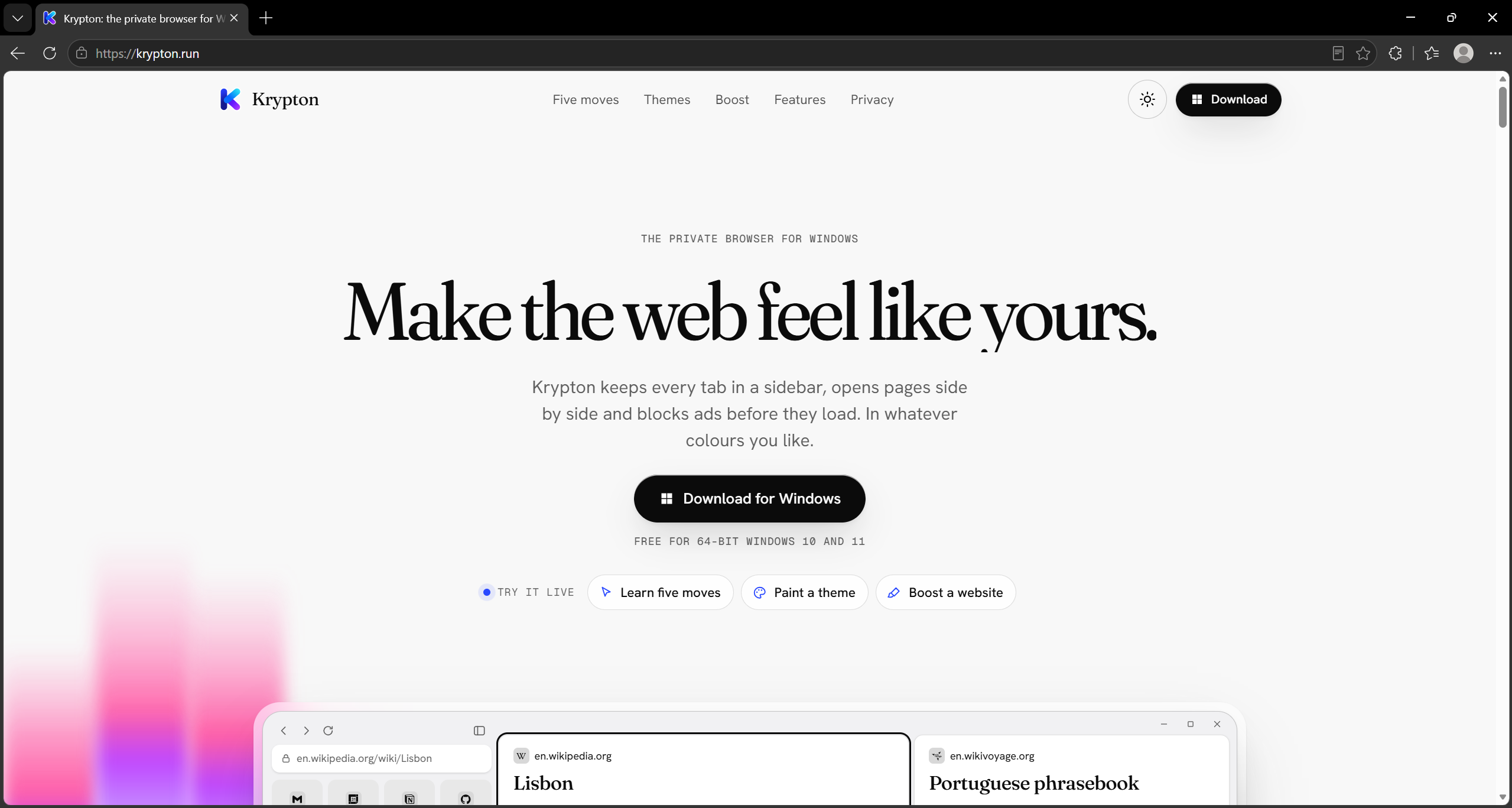
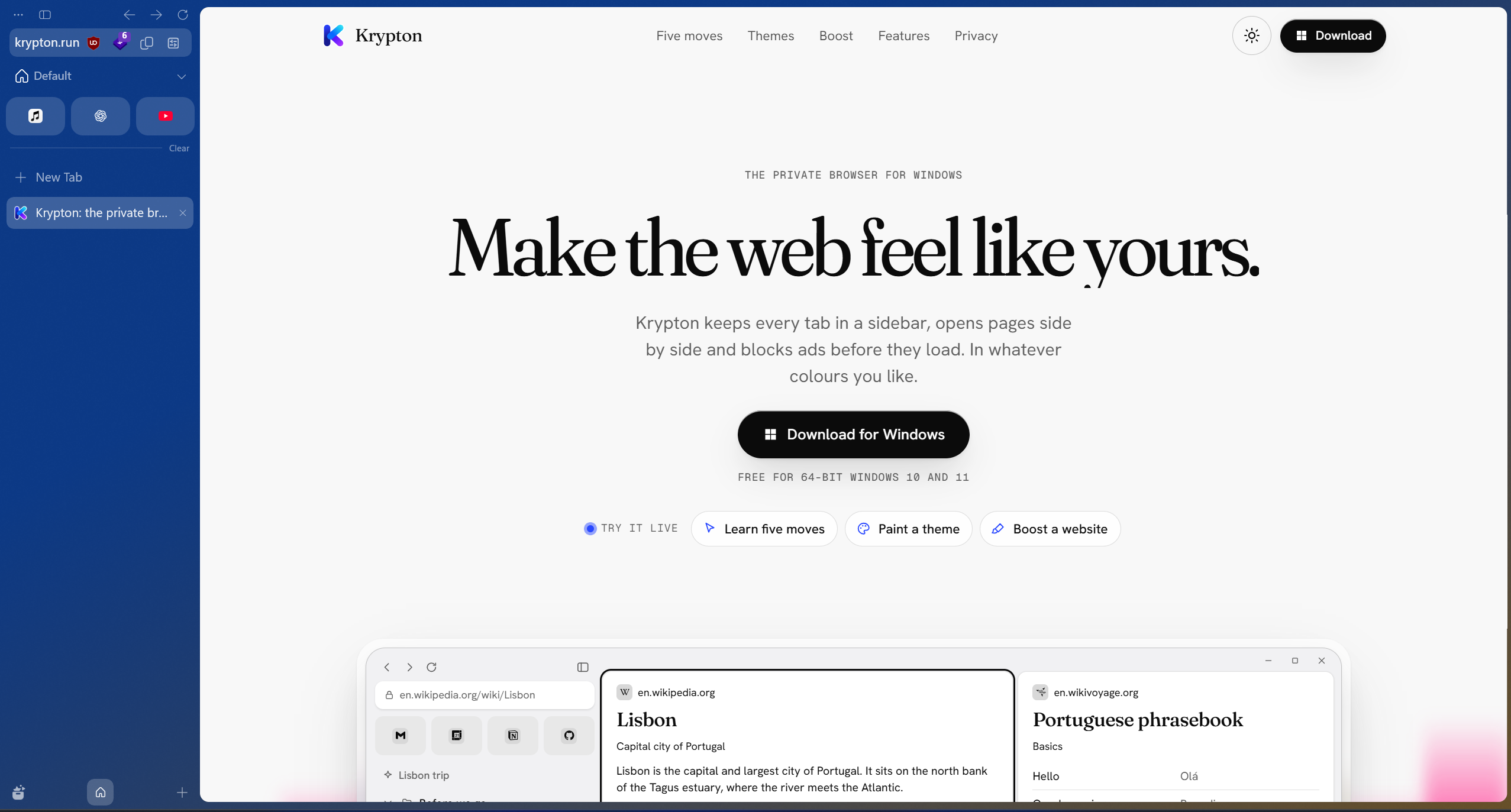
Drag the divider, or focus it and use the arrow keys.Krypton and Edge, side by side.
Krypton and Edge at a glance
Edge also offers vertical tabs. Krypton’s screenshot shows its sidebar setup, while the supplied Edge capture uses horizontal tabs; both layouts depend on your settings.
| What matters | Krypton | Edge |
|---|---|---|
| Captured tab layout | Sidebar tabs with a blue workspace theme | Horizontal tabs; vertical tabs are also available |
| Tab organisation | Workspaces and folders that nest five levels deep | Horizontal or vertical tabs, with tab groups |
| What the images show | krypton.run with the captured Krypton settings | The same website with the captured Edge settings |
Two ways to arrange your tabs
Microsoft Edge can use horizontal or vertical tabs. The capture on this page shows its horizontal layout; it does not mean Edge lacks a sidebar option. Microsoft documents how to switch between those layouts.
Krypton keeps its tabs in a sidebar, with nested folders and workspaces for separate projects. Its screenshot shows that layout with a blue theme. Use the slider to compare the captured windows, then try the organisation tools you would use every day.
Krypton’s tools around each page
Krypton includes uBlock Origin and does not send usage statistics or crash reports. Its privacy policy explains the connections made for updates and optional features, as well as the data that stays on your computer.
Glance opens a link over your current page with Alt-click. Split view holds up to four pages, while Boost changes a website’s colours, type and visible elements for you. Try these tools with an ordinary project before deciding whether to move from Edge.
Try one project first
Moving from Edge to Krypton
- Install Krypton alongside Edge and keep your existing browser data intact.
- Check the Chrome Web Store for the extensions you depend on and verify their publishers.
- Organise one project in a workspace and try folders, Glance and split view.
- Check your everyday sites and saved information before making Krypton your default browser.
Sources and further reading
Use the official documentation to check the features you depend on. Screenshots show krypton.run with the captured settings; browser layouts, themes and extensions can change the result.
- Microsoft Edge: vertical tabs and tab groups
- Microsoft Edge: official browser website
- Krypton’s privacy policy
- Krypton’s source code
Updated