
Zen alternative for Windows
Krypton vs Zen
Zen and Krypton both make room for a different way to browse. Your choice of extensions is a useful place to start.
For a Zen Browser alternative on Windows, Krypton pairs vertical tabs and workspaces with extensions from the Chrome Web Store.
Free for 64-bit Windows 10 and 11
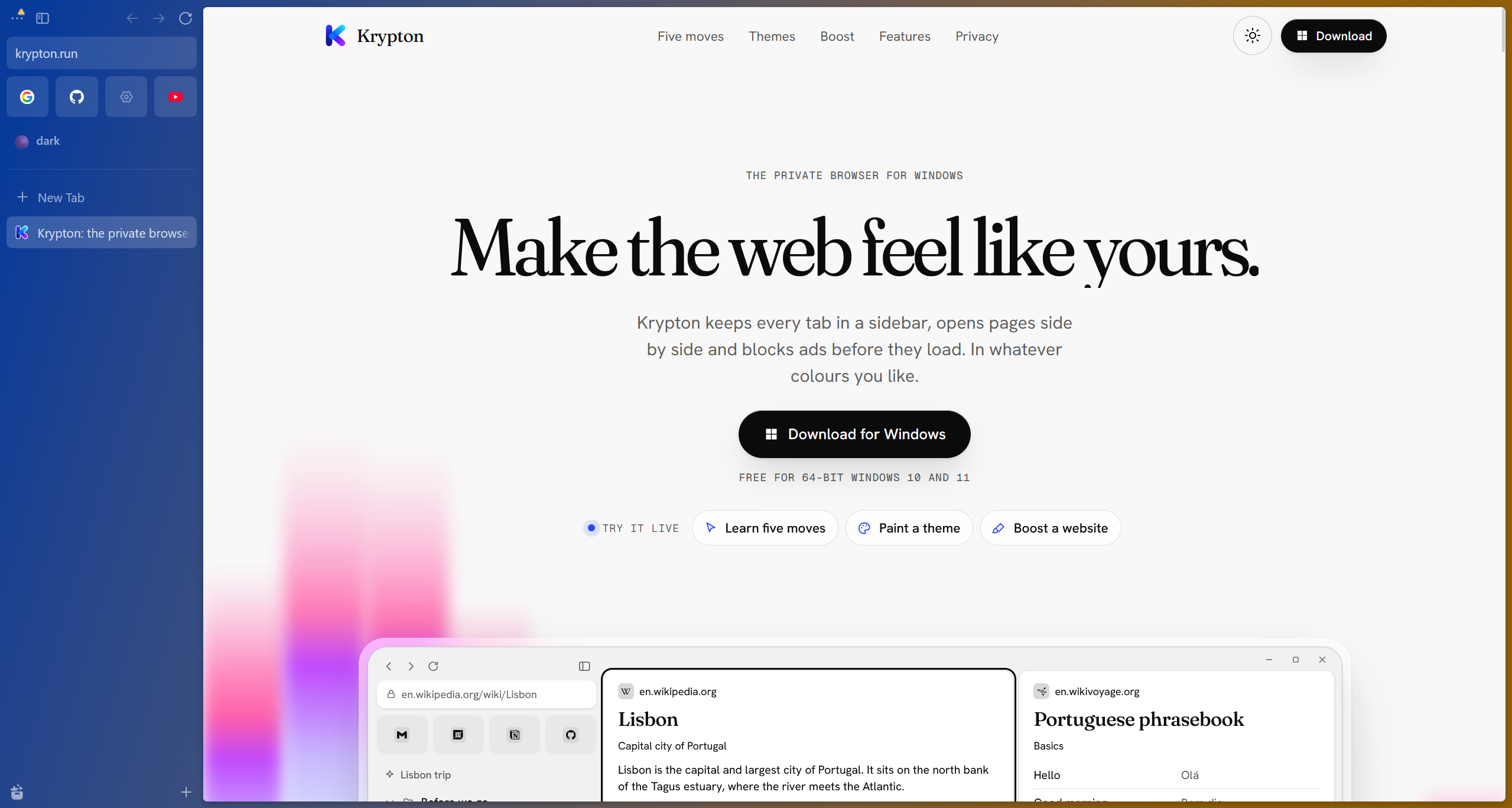
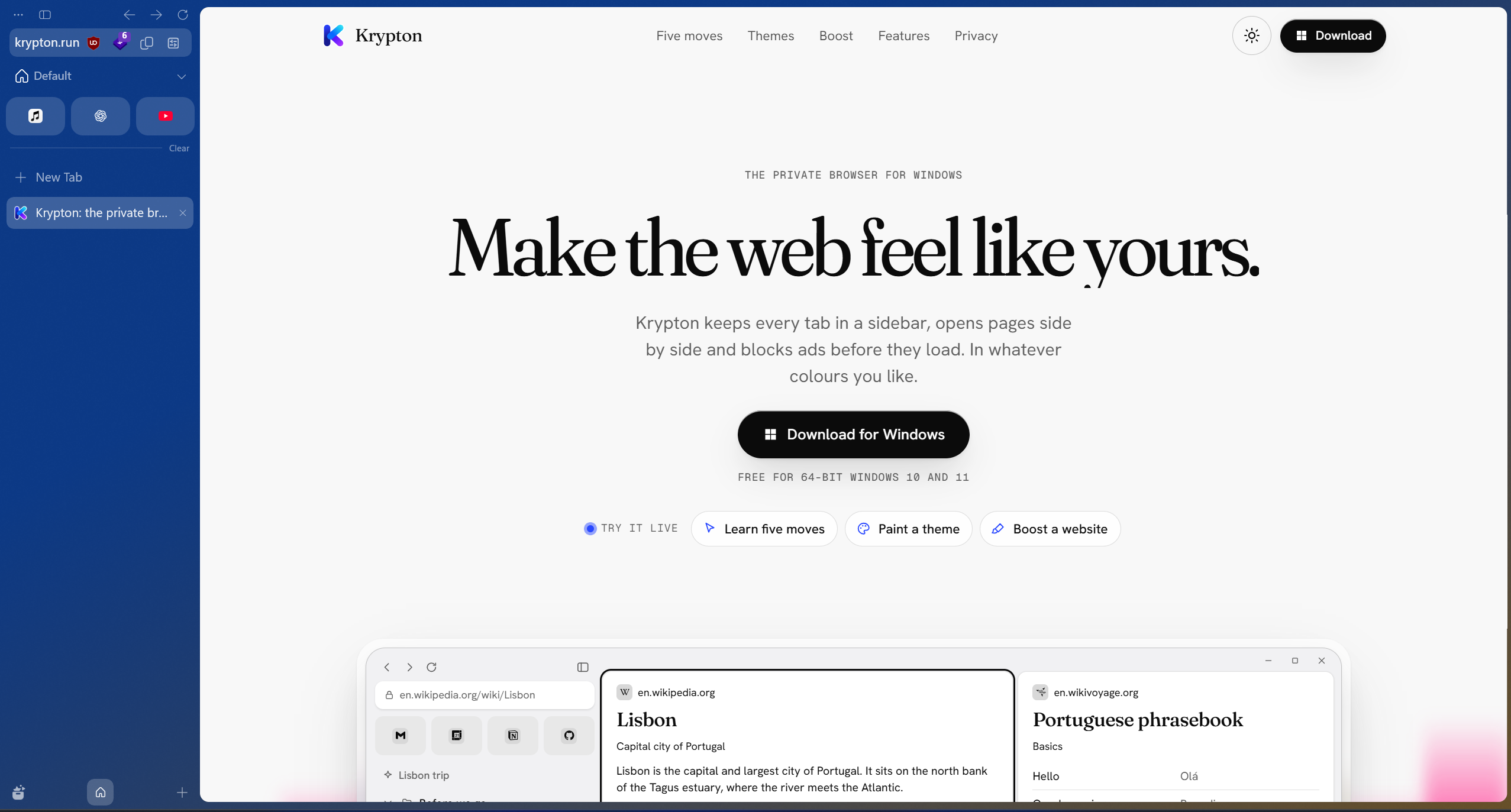
Drag the divider, or focus it and use the arrow keys.Krypton and Zen, side by side.
Krypton and Zen at a glance
Zen is based on Firefox. Krypton uses Chromium, so Firefox add-ons do not transfer directly; look for their Chrome Web Store equivalents.
| What matters | Krypton | Zen |
|---|---|---|
| Browser foundation | Chromium | Firefox |
| Extension library | Chrome Web Store | Mozilla Add-ons |
| Tab organisation | Workspaces, sidebar tabs and nested folders | Workspaces, with Container Tabs described separately in Zen’s documentation |
The extension library is the first choice
Zen is based on Firefox and uses Mozilla’s add-on library. Krypton uses Chromium and supports extensions from the Chrome Web Store. A familiar extension name can have different versions in the two stores.
Before switching, list the add-ons you depend on and check their publishers’ Chrome Web Store listings. Firefox extension files do not install directly in Krypton. Check whether an extension’s settings can be exported rather than assuming they will follow it.
Workspaces with different foundations
Both browsers offer workspaces for grouping tabs by task or project. In Krypton you can give a workspace its own colours, organise tabs in nested folders and swipe between workspaces with two fingers.
Zen’s documentation also describes Firefox Container Tabs, which separate cookie sessions. Grouping tabs and separating website identities are different needs: do not assume that recreating a workspace also recreates container isolation. Check your sign-in workflow before moving.
Try one project first
Moving from Zen to Krypton
- Install Krypton alongside Zen and leave your existing profile intact while you compare.
- Find the Chrome Web Store versions of your essential extensions and verify their publishers.
- Recreate one project as a Krypton workspace and try Glance, split view and nested folders.
- Check your account sessions and everyday sites, especially if you rely on Firefox Container Tabs.
Sources and further reading
Use the official documentation to check the features you depend on. Screenshots show krypton.run with the captured settings; browser layouts, themes and extensions can change the result.
- Zen: extensions and Zen Mods
- Zen: workspaces and Container Tabs
- Krypton’s privacy policy
- Krypton’s source code
Updated