
Helium alternative for Windows
Krypton vs Helium
Comparing Helium and Krypton? Both put privacy first, and Helium is part of Krypton’s open-source foundations.
Krypton adds its own tab sidebar, nested folders, workspaces and a theme editor. Glance opens a link over the page you are reading.
Free for 64-bit Windows 10 and 11
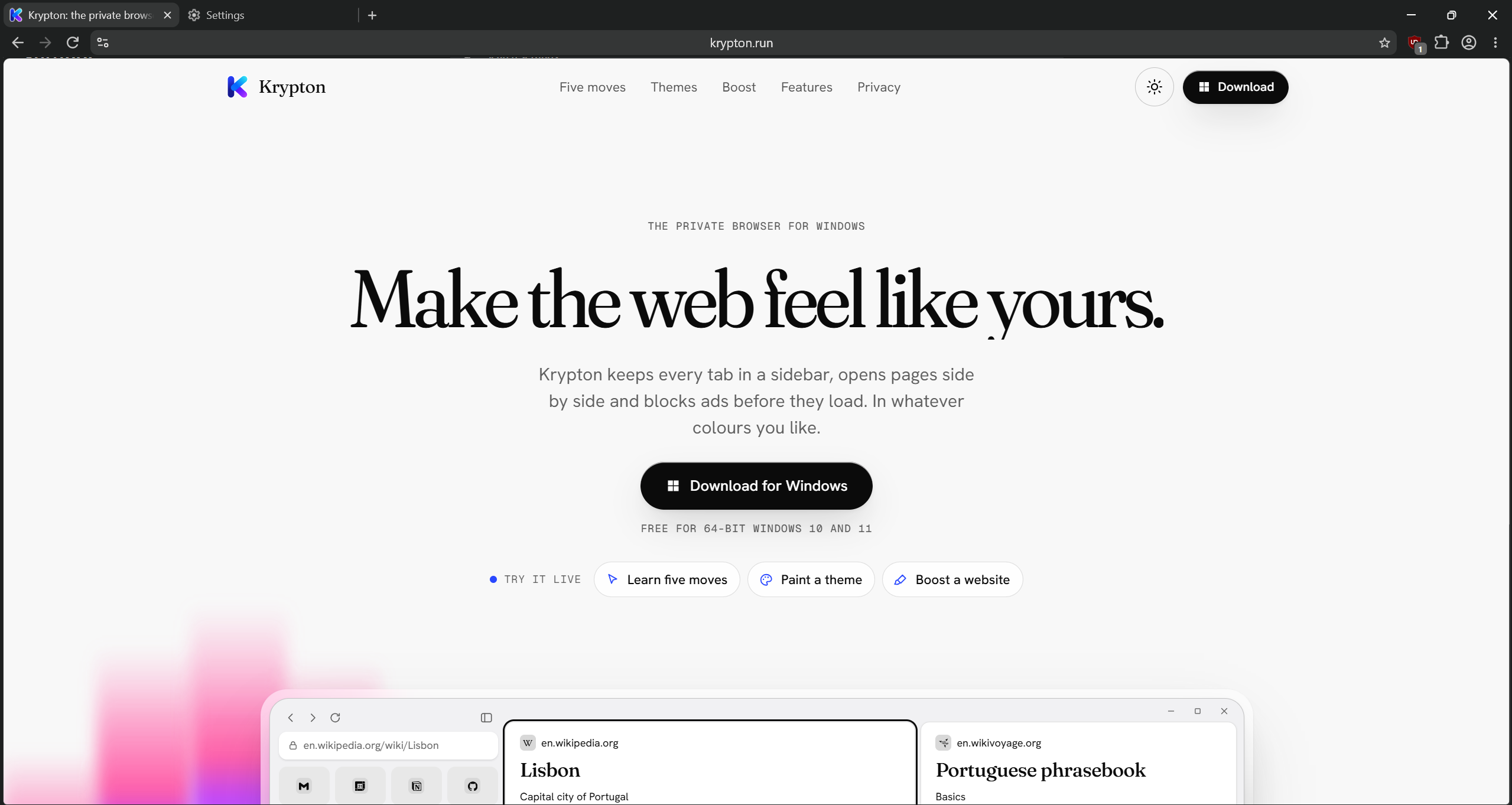
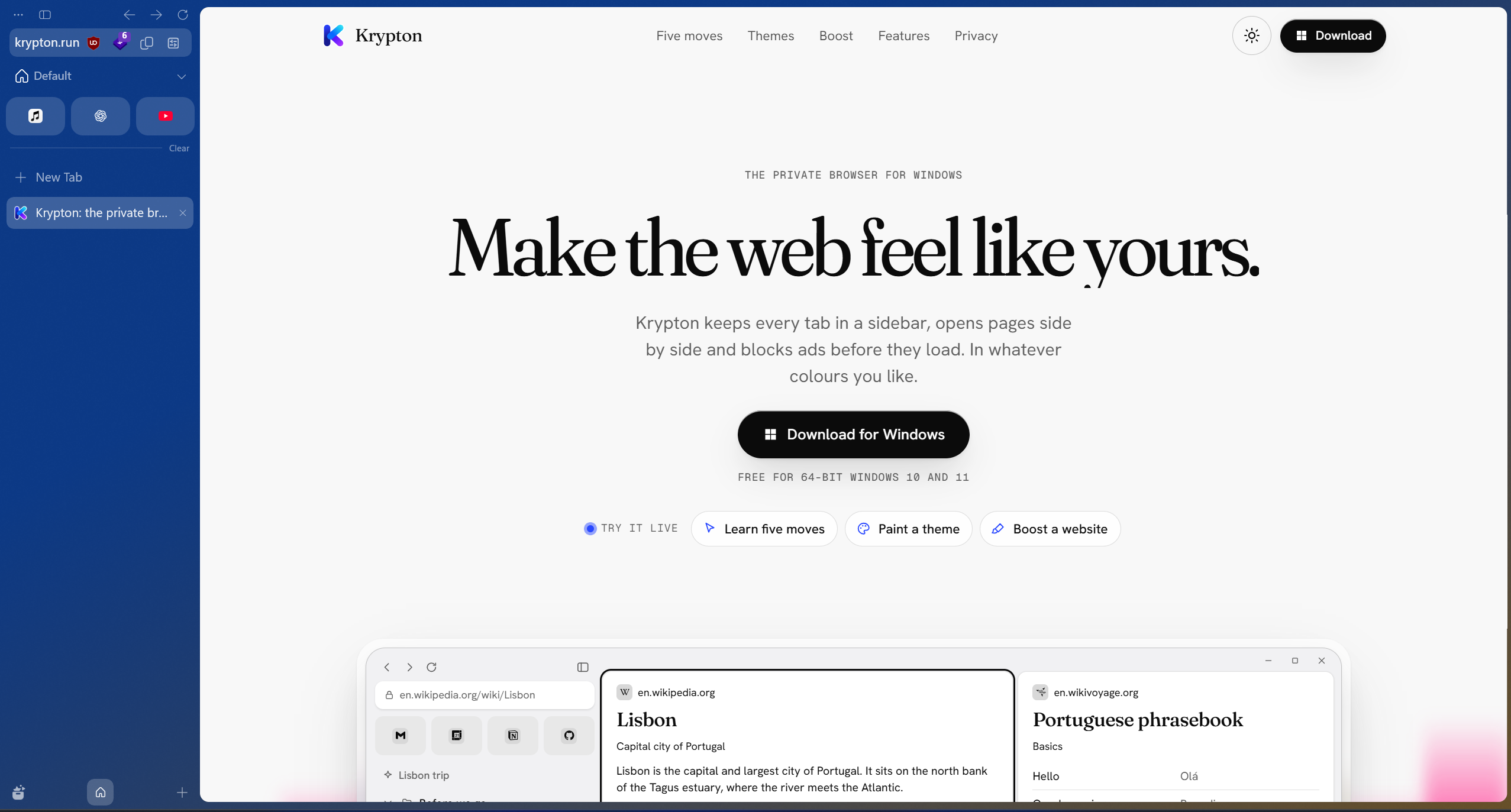
Drag the divider, or focus it and use the arrow keys.Krypton and Helium, side by side.
Krypton and Helium at a glance
Helium includes content blocking and Chromium extension support too. Try Krypton if its tab organisation and customisation suit your work.
| What matters | Krypton | Helium |
|---|---|---|
| Foundations | Chromium, ungoogled-chromium and Helium | Chromium-based, open-source browser |
| Extensions | Chrome Web Store extensions | Chromium extension support |
| Customisation | Workspace themes and per-site Boosts | Layouts, toolbars, colour themes and Frameless mode |
Shared foundations, different daily workflows
Helium is part of Krypton’s open-source foundations, alongside Chromium and ungoogled-chromium. Both browsers include content blocking and support Chromium extensions. The choice is more useful when you look at how you manage a day’s worth of pages.
Helium offers layout choices, toolbar customisation, colour themes and Frameless mode. Krypton centres its workflow on a tab sidebar, workspaces, nested folders and a theme editor. Try a real project in each layout instead of choosing from a feature count.
Krypton’s tools for reading and arranging pages
Krypton’s Glance opens a link over your current page with Alt-click. Keep it when it belongs in your project, or close it and return to your place. For sustained comparison work, split view can hold up to four pages.
Boost lets you restyle individual websites and keep those preferences for future visits. Helium also has its own split-view and customisation features; this comparison is about which workflow you prefer, rather than assuming only one browser has those tools.
Try one project first
Moving from Helium to Krypton
- Install Krypton alongside Helium and keep your Helium profile while you compare.
- Use Krypton’s setup to import your Helium bookmarks, then check the result.
- Install your essential extensions and organise one project into a workspace with folders.
- Try a workspace theme, a Glance and a per-site Boost before choosing your default browser.
Sources and further reading
Use the official documentation to check the features you depend on. Screenshots show krypton.run with the captured settings; browser layouts, themes and extensions can change the result.
- Helium: features, privacy and extensions
- Helium: open-source project
- Krypton’s privacy policy
- Krypton’s source code
Updated