
Firefox alternative for Windows
Krypton vs Firefox
Firefox and Krypton take different routes to a private browser. The engine and extension library matter when you switch.
Krypton is a Chromium-based Firefox alternative for Windows, with uBlock Origin built in and extensions from the Chrome Web Store.
Free for 64-bit Windows 10 and 11
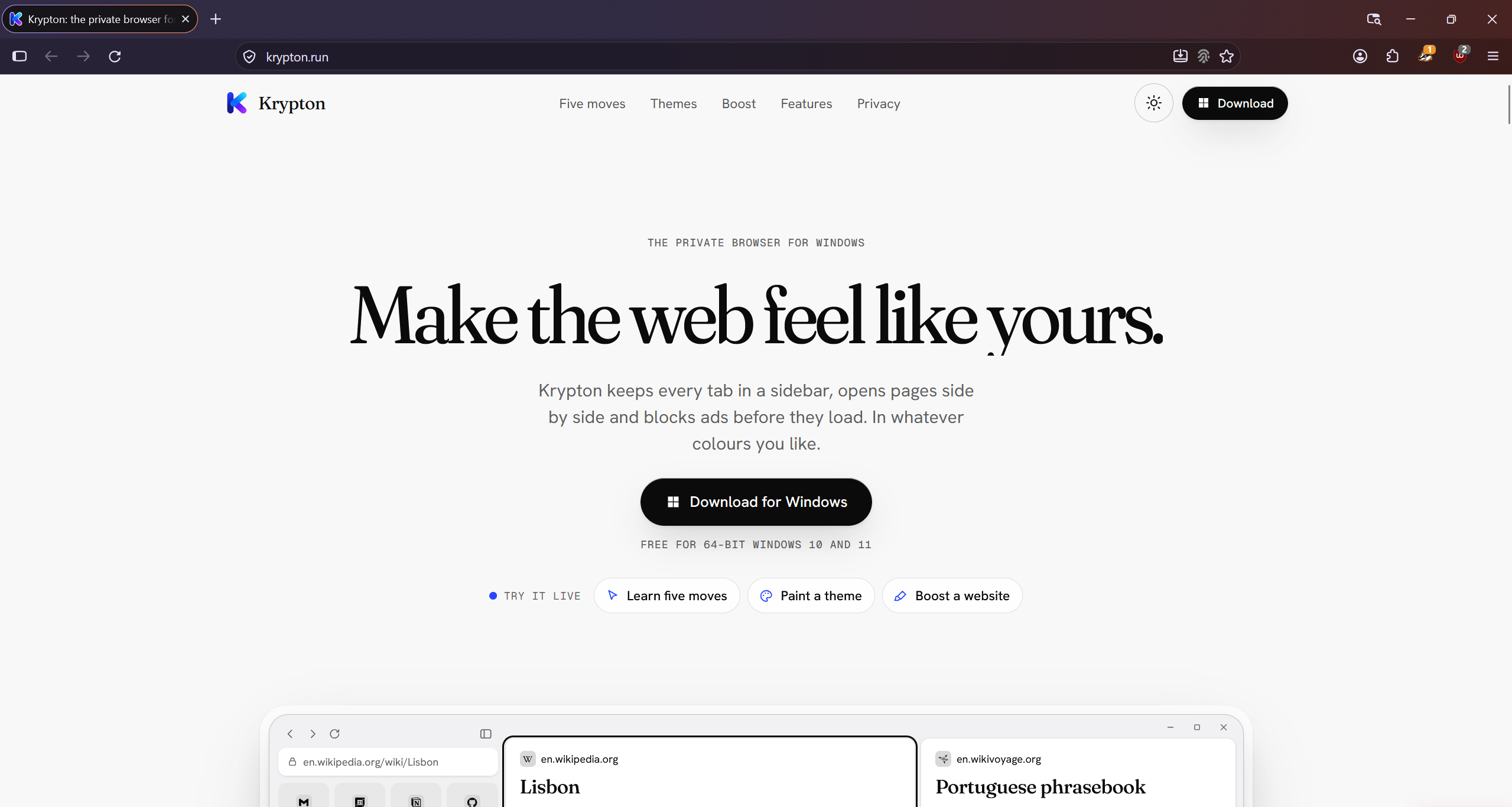
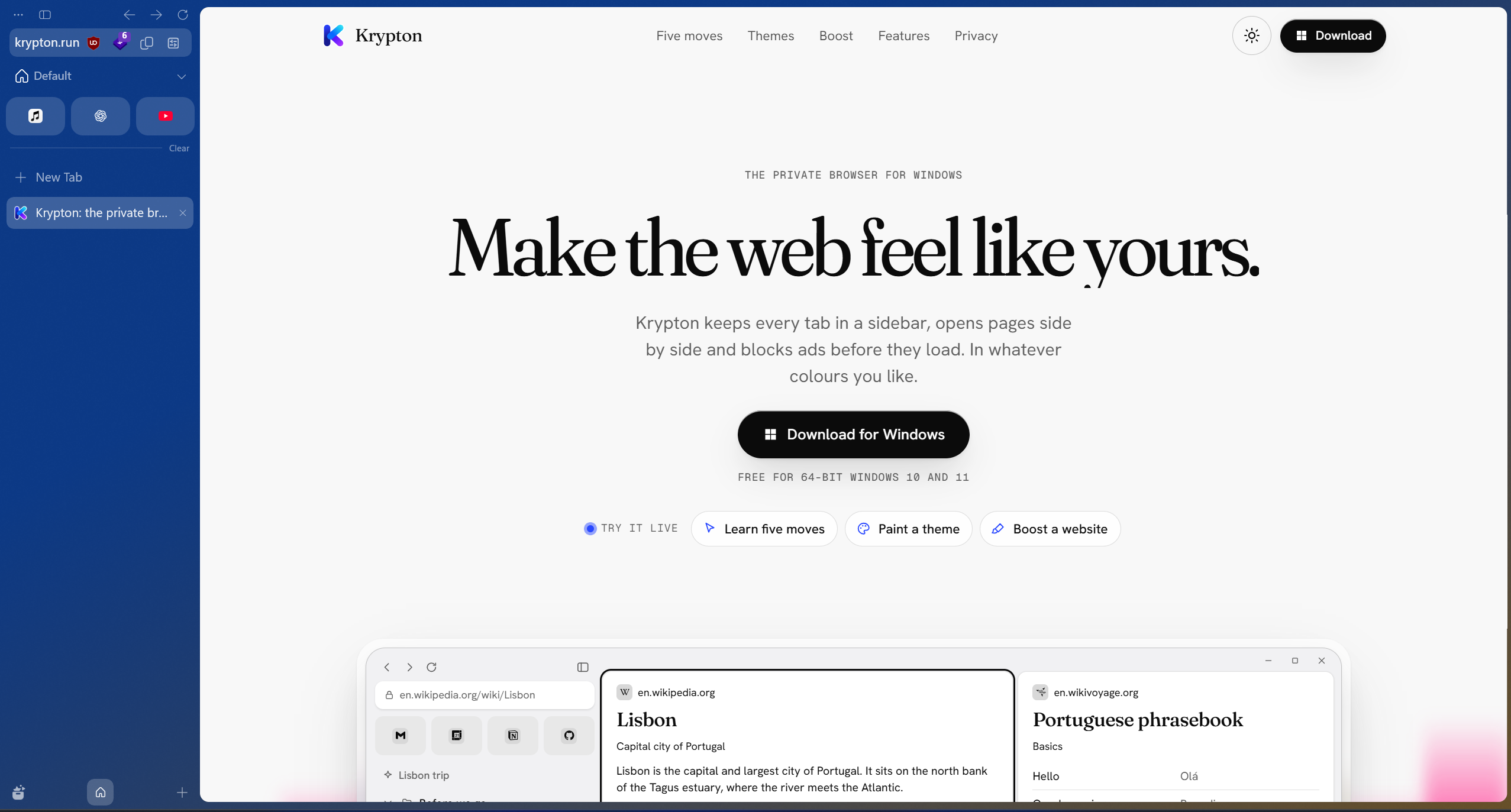
Drag the divider, or focus it and use the arrow keys.Krypton and Firefox, side by side.
Krypton and Firefox at a glance
Firefox uses its own browser engine and add-on library. Choose the engine you prefer, then compare how Krypton’s workspaces, Glance and Boost fit your day.
| What matters | Krypton | Firefox |
|---|---|---|
| Engine family | Chromium | Firefox / Gecko |
| Extension library | Chrome Web Store | Mozilla Add-ons |
| Privacy tools | Built-in uBlock Origin; no usage statistics or crash reports | Firefox’s privacy protections and add-on ecosystem |
Choosing between browser engines
Firefox and Krypton use different browser engines. Choosing Firefox supports a different engine family from Chromium; choosing Krypton brings its sidebar workflow to a Chromium-based browser.
Neither choice establishes that every website will behave identically. Open the sites you rely on for work, video, communication and accessibility in your prospective browser. A feature list cannot replace checking your own daily tasks.
Add-ons, blocking and customisation
Firefox uses Mozilla’s add-on library. Krypton supports the Chrome Web Store and includes uBlock Origin. Look for an equivalent of each Firefox add-on you need, and check its publisher and permissions before installing it.
Krypton’s customisation includes workspace colours, nested tab folders and per-site Boosts. Glance lets you peek at a linked page; split view keeps up to four pages open together. Recreate one task in that workflow before committing your whole setup.
Try one project first
Moving from Firefox to Krypton
- Keep your Firefox profile intact and install Krypton alongside it.
- Find Chrome Web Store equivalents for your essential Firefox add-ons.
- Check how your everyday websites work in Krypton, including any browser-specific features you use.
- Organise one task in a workspace and verify your saved information before changing your default browser.
Sources and further reading
Use the official documentation to check the features you depend on. Screenshots show krypton.run with the captured settings; browser layouts, themes and extensions can change the result.
- Firefox: browser features and privacy
- Mozilla: Firefox add-ons
- Krypton’s privacy policy
- Krypton’s source code
Updated